Part of any company’s data strategy is the definition and implementation of a set of procedures, and practices that will allow it to manage, at all levels, its data assets. In other words, it needs to define and implement a data governance strategy. This is by no means an easy task, or a cheap one. It not only requires the commitment and sponsorship from the top management, but it also requires the right people, and tools to support it.
In this blog series, we will explore in detail what Microsoft Azure has to offer in terms of data governance, how the product works and its main features. However, before we do this, we need to understand a bit of history about the product.
Evolution of Microsoft Purview
If you google “Microsoft Purview” or maybe “Azure Purview”, you might get confusing results, especially if you are new to the product. This could happen because a bit more than a year ago, Microsoft announced the merging and rebranding of two of its former products: Microsoft Office 365 Compliance and Azure Purview. A new brand called Microsoft Purview was born, bringing together these 2 products, but now with new names:
- Microsoft 365 Compliance is now Microsoft Purview: Risk and Compliance Solutions
- Azure Purview is now Microsoft Purview: Data Governance Solutions
So, if you are planning to explore any of these products, make sure you are specific and not just use “Microsoft Purview” in your search.
Having clarified this detail, let’s explore now the features of Microsoft Purview: Unified Data Governance.
Microsoft Purview Data Governance Solutions
The best way to start exploring the product, is by explaining first and in simple terms, what it is and what we can do with it. So, in plain terms we could say that Microsoft Purview Data Governance Solutions are a set of tools or services that will allow us to create a comprehensive view of our data assets, document them, enrich their metadata, monitor them, secure them, and make them available to our business users, so they can do what they do best: get the most out of the data to add value to the business.
Something interesting about the product is that it is not one single product with a lot of features, no, the product is a unified service made up of a core service, and 4 Apps that are on top of it. The following image summarizes clearly the services that are part of the product, how they work together and the target roles for each App/service:
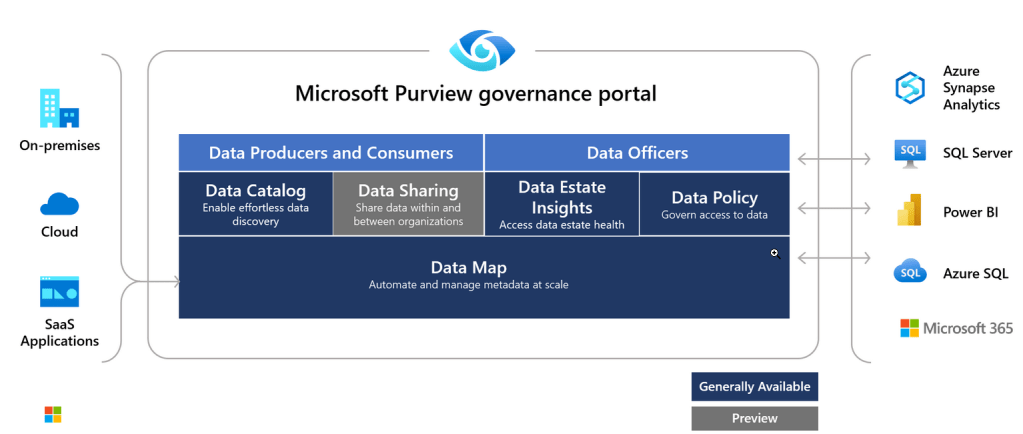
Microsoft Purview services/Apps
As the image states, all the services can be accessed and set up through the Microsoft Purview Governance Portal. In order to have access to it, you need to create a Microsoft Purview account first. However, it is important to note that currently, it is still not available in all the regions. This is important because all the metadata that will be extracted from your sources will be stored in the same region you selected for the Microsoft Purview account. Although data itself is not stored anywhere, only metadata; depending on your specific scenario, you might be breaking a data sovereignty/residency law.
Once you have your account created, you can access the Microsoft Purview Governance Portal, and start setting up the core service, the basis of the product: the Data Map.
Data Map
The Data Map is the foundation for data discovery and data governance. It will help us to scan all of our sources, extract the metadata, classify our data assets, and create a map of them. Let’s go through each of the features it offers, to understand it better.
1. Sources registration
The first thing you need to do is to register your sources. The service supports data sources, such as Azure Data Lake Gen2, Power BI, Looker, Salesforce, Google BigQuery, or MongoDB, among others.
Depending on your source, you might need to do some extra setup in order to allow the communication between Microsoft Purview and the data source, and to allow the metadata scanning.
Once you have registered your sources, you will be able to see a Map View that gets updated as you add new sources.

Data Map – Map View
The Map View shows all the registered sources along with the Collections they belong to, which, by the way, takes us to the next feature.
2. Collections
Collections are simply a way to organize your sources, scans, data assets, and they provide the basis of how you could structure your security model. Most companies do not allow employees to see all the data that is available. Usually, they only allow employees to access data within certain boundaries. For instance, if you work in the Sales department, one of your organization’s data governance definitions could state that you should only be granted access to the Sales data. If this is your case, your Collections model could be designed to reflect this.
An example of a Collections model based on departments, teams or projects can be seen below:
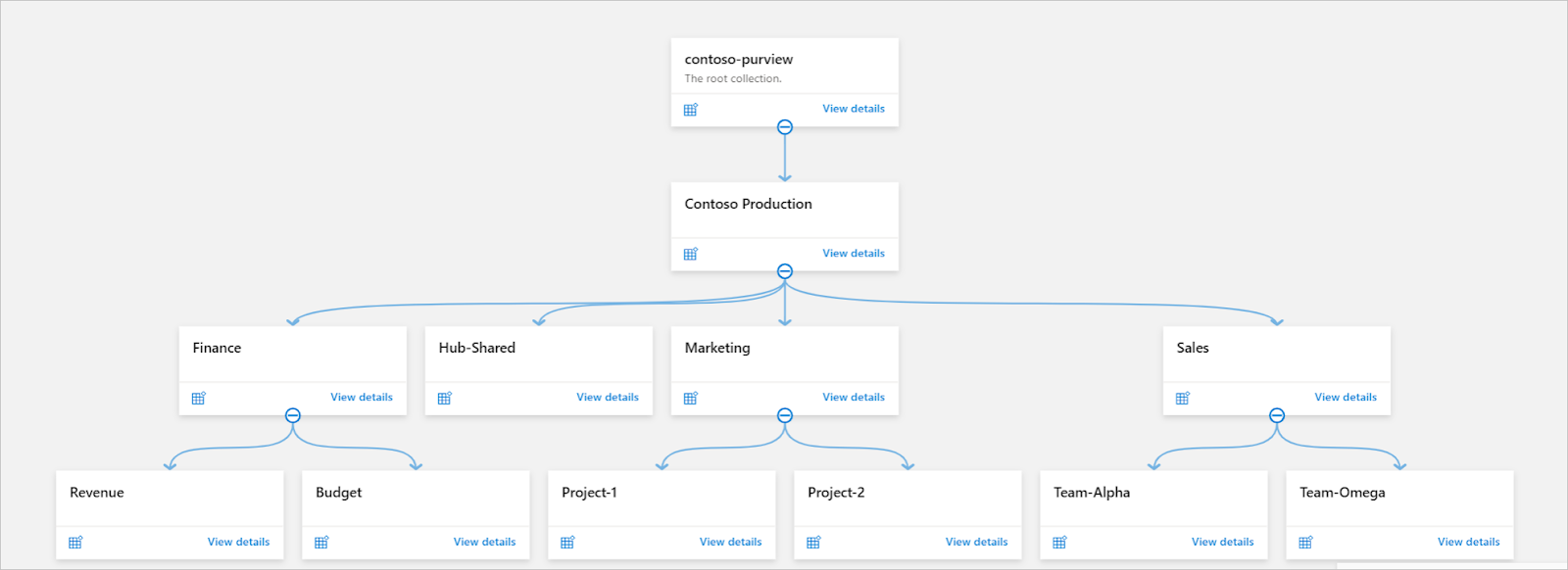
Data Map App – Collections
Other examples of how you could organize and manage your data assets can be found here.
Access to Collections can be granted depending on your role:
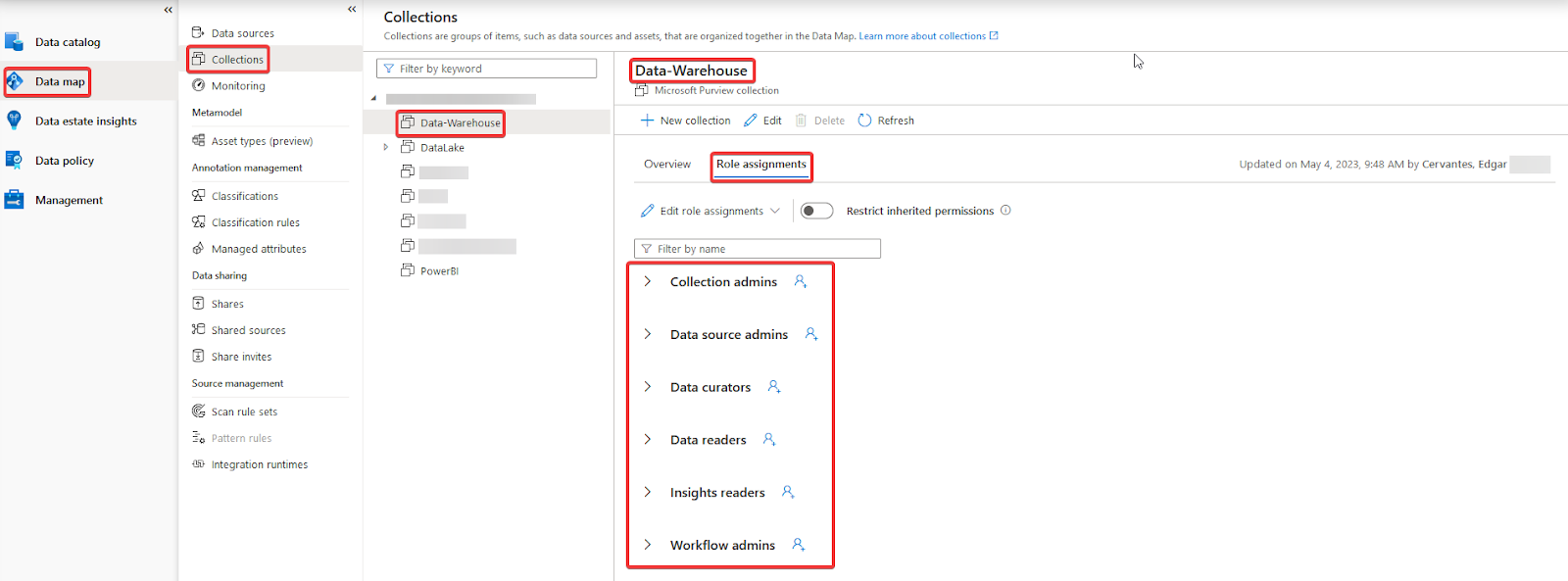
Collections in Microsoft Purview Governance Portal
Below you can find the definition for each role, so you can have a better idea of their access level:
- Collections Admins: They can edit the collection, its details, add subcollections, and they add data curators, data readers, and other Microsoft Purview roles to a collection scope.
- Data Source Admins: They can manage data sources and data scans.
- Data Curators: They can perform create, read, modify, and delete actions on catalog data objects and establish relationships between objects.
- Data Readers: They have access to read catalog data objects.
- Insight Readers: They can access the data-estate insights reports.
- Workflow Admins: They can perform create, read, modify, and delete action on workflow definitions and the associated workflow runs
3. Sources scanning
Now that you have your sources registered, and you have a clear definition about how you are going to organize and manage your data assets, you are ready to extract all your data-assets metadata. This task can be achieved by running a Scan on the source. During the Scan setup, you could use two great features that could help you to specify the scope of the Scan, and enrich your data-assets metadata.
a. Scan Rules Set
They are specific to the data-source type, and they are a way to group the rules you would like to apply during your Scans. You could use any of the built-in ones, or you can create your own ones. For instance, if we were to run a Scan on an Azure Storage Account, we could limit the scope of it by creating a custom Scan Rule Set and specifying the type of files we would like to Scan:
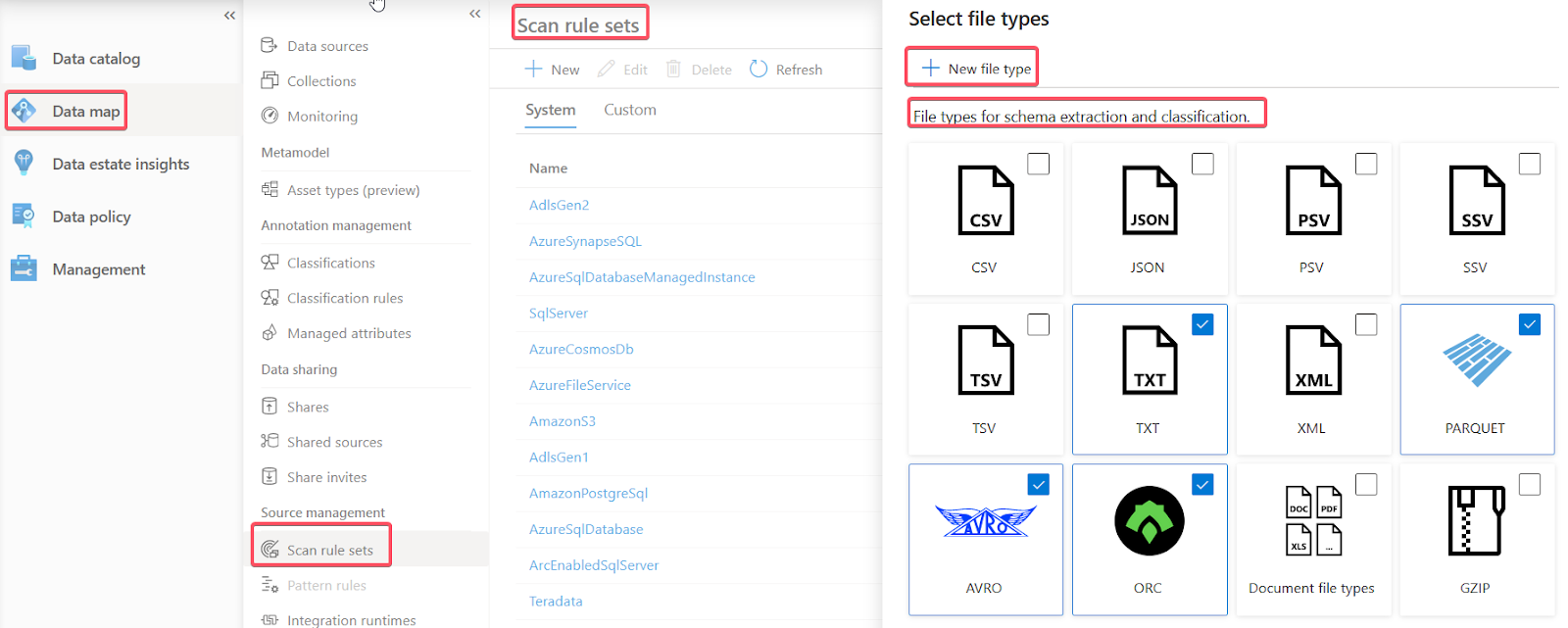
Data Map – Custom Scan Rule Set
I could add a new file type (e.g., .MyCustomFileType) should it be necessary, or I could add up to nine custom regular-expressions based patterns to exclude other types of files. Comment aside, it would be nice to have a visual designer to support the creation of these regular expressions; not everyone is familiar with them, and they require good testing.
Now, if we were to create a Scan Rule Set to run a Scan on an Azure SQL Database, we would not have all these options available. The only thing we would need to set up is our next feature: Classification Rules. So, just to clarify, the Scan Rule Set’s options depend entirely on the data source you are creating it for.
b. Classification Rules
They are rules that will help you to enrich your metadata by classifying your data assets based on its content. For instance, if you had several tables across different databases that store passport numbers from different countries, you could add some of the built-in Classification Rules, so the Scan can automatically classify all the columns that store this type of data accordingly. This will help you manage this type of data in the right manner. Not everyone should have access to a table that stores this type of information. Also, it will facilitate the search of this type of data to the business users that would need to work with it.
The feature offers a ton of useful Classification Rules, and allows you to create your own ones. They can be based on a regular expression or a list of values.
Both types of Classifications can be added to a Scan Rule Set.
Summary
Up until this point, we learned a bit of history about the Microsoft Purview brand, the solutions that are part of it, we also saw what Microsoft Purview Data Governance solutions are, and started exploring the features that the Data Map service has to offer.
We still have a pending review of the four Apps that are part of the Data Governance solutions, but we will explore them in our Part 2 of this series blog.
 Tech & more blog
Leave a comment