This week I learned what a virtual environment is and how it can help you to work with and manage different Python projects.
If you are starting to use Python, you probably have noticed already that whenever you need a library for a project, you just install it and that’s it, right?
However, what happens when all of a sudden you need to start working on another project in parallel that has a whole different set of library dependencies?
You probably know that if you have a library, which version is 1.0.0, and you need to update it to version 3.0.0 to use it in another project, the older version will be overridden. This will create many issues when you want to work again on the other project which must use the library, but version 1.0.0.
So, what to do in this common scenario? Use virtual environments. A virtual environment allows you to create an isolated “box” for each project you work on. Within this box/environment, you can have installed all the libraries you need without affecting your workstation’s global python environment.
The following image might help clarify things a bit more:
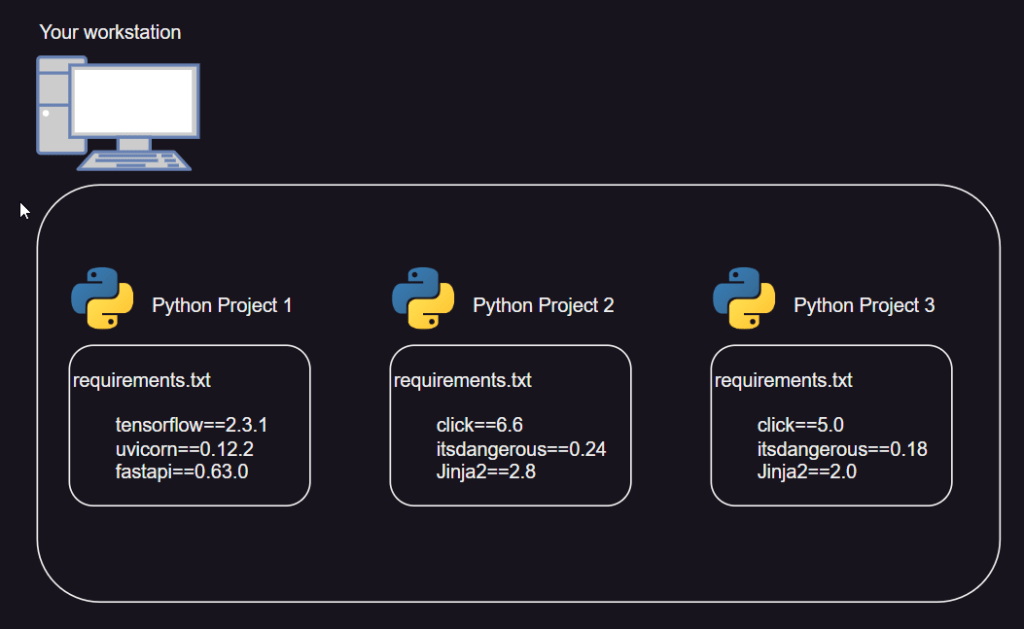
Python Virtual Environments
Each environment you create can have different configurations. With this, you can have cleaner projects setups and you will be able to jump from one Python project to another seamlessly without worrying about the libraries dependencies.
How to create a Python Virtual Environment?
Several libraries allow you to do this. The one that comes with Python (starting from Python 3.3) is venv. It is very easy to use. The main steps are the following ones:
* Code samples were executed in Windows Command Line
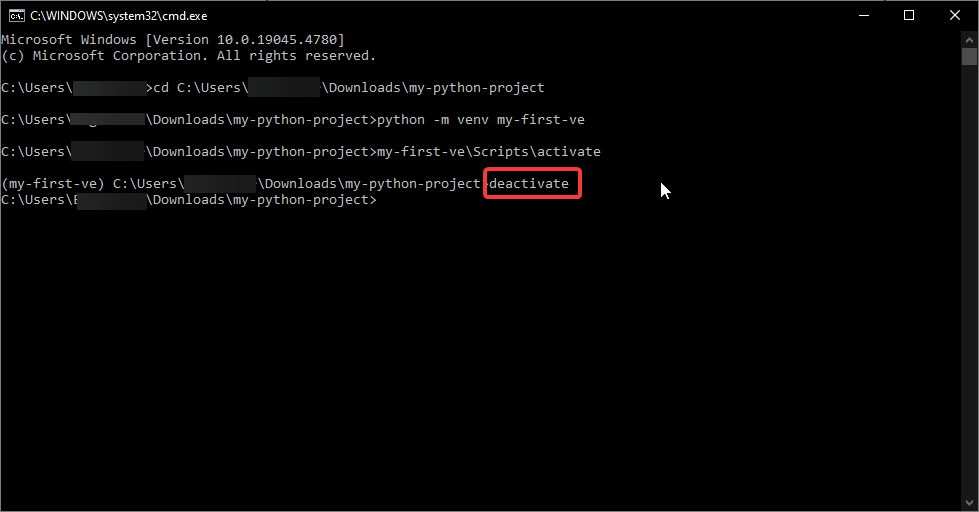
1. Create the virtual environment
Go to the folder where you would like to create the virtual environment and run the following command:

python -m venv my-first-ve
You will notice that a folder with the name of your virtual environment was created.

2. Activate it
my-first-ve\Scripts\activate
Once it is activated, you will always see its name at the left side of the command line. This means that you’re working on that virtual environment and that you’re ready to install whatever you need to install in it.

3. Deactivate it
deactivate
Now that you know about virtual environments in Python, you can start using them and get the most out of it.
Hope you liked this post!
 Tech & more blog
Leave a comment