
In this article, which will be a short one, I will share how we can read a nullable property of an activity in AZ Data Factory.
1. Pre-requisites
Ideally you should be familiar with the following to understand what I’m talking about:
* All activities provide execution details. I am providing the Copy activity’s documentation because the example I have is with this activity
2. Error message when you try to read a null property
When you try to read a null property from the execution details of an activity in AZ Data Factory, you will see an error message similar to the following one:
Operation on target Activity_X_Name failed: Activity failed because an inner activity failed; Inner activity name: Activity_Y_Name, Error: The expression ‘activity(‘Activity_Z_Name’).output.durationInQueue.integrationRuntimeQueue’ cannot be evaluated because property ‘durationInQueue’ doesn’t exist, available properties are ‘dataRead, dataWritten, filesWritten, sourcePeakConnections, sinkPeakConnections, rowsRead, rowsCopied, copyDuration, throughput, errors, effectiveIntegrationRuntime, billingReference, usedParallelCopies, executionDetails, dataConsistencyVerification’.
In the previous error message the property durationInQueue cannot be found, it’s not available. This is because the the activity did not register any time at all in queue. This could happen for a different activity and for a different property.
3. Possible solutions
I have implemented the following 2 possible solutions:
3.1 Validate if the json string of the execution details contains the nullable property:
The title is self-explanatory. Let’s analyze the following pipeline I created:
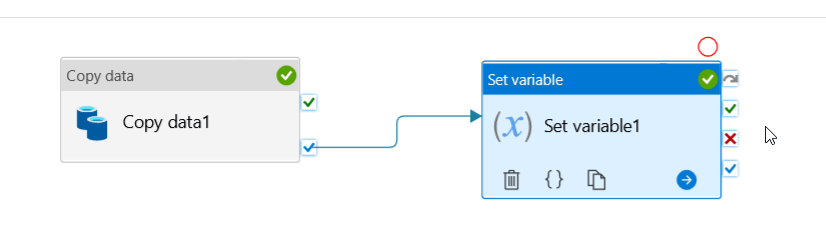
Let’s say we want to capture in a pipeline variable any error message a Copy activity might throw after it has finished (On Completion in terms of AZ Data Factory). If there are no errors, the error-message capture step should not fail due to a nonexistent property. This could be a sample code we would use:
@if(contains(string(activity('Copy data1').output.errors), 'Code'),
activity('Copy data1').output.errors[0].Message, 'null property edg')
The code will validate whether the content of any of the elements of the errors array contains the word Code. Why the word Code? Because every time an activity fails, it always returns an error code. If the validation of the function Contains returns true, we will return the value of the property Message of the first element of the array (“…errors[0].Message”). If the validation returns false, we will return, for testing purposes, the string “null property edg”; you can return null or any other value you consider it is appropriate.
If I run the pipeline without forcing it to fail, this is what the Set variable activity shows in its execution details:
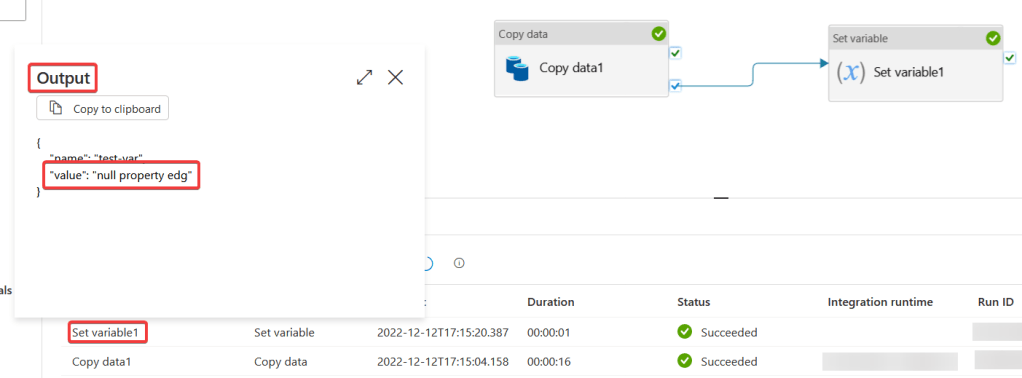
Since there were no errors in the execution of the Copy activity, the expression returns the expected value: “null property edg”. Now, if we force it to fail by changing the name of the file we are trying to load, we will read the error message.
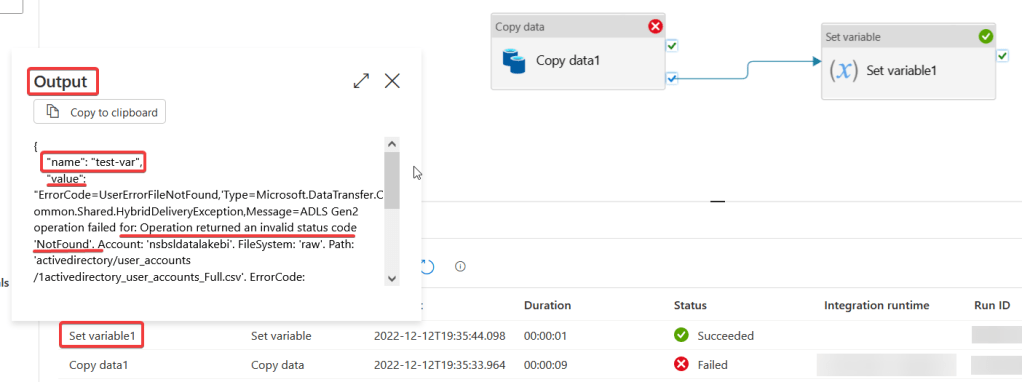
Something important about this method is that you need to convert the execution details into a string, so it works properly. If I remove the call of the function string, it will not work as expected and the expression will return the value “null property edg” as if there were no errors, which is incorrect. Let’s see:
@if(contains(activity('Copy data1').output.errors, 'Code'),
activity('Copy data1').output.errors[0].Message, 'null property edg')
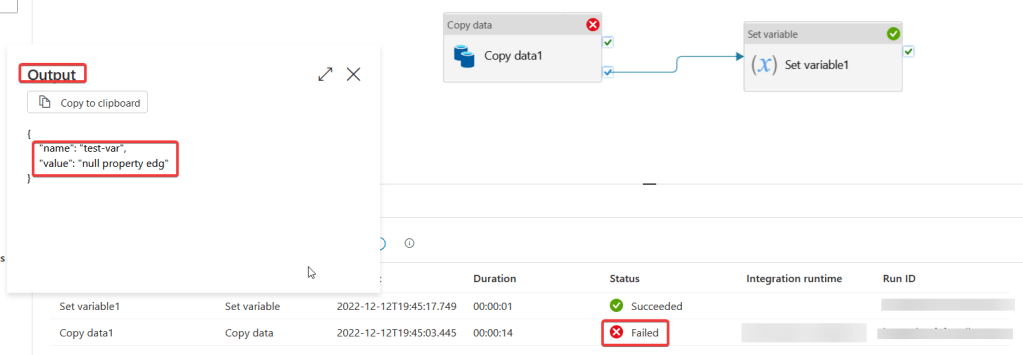
This happens because there is no item called Code within the errors array. The item Code is part of the first element of the array errors.

Since we don’t know when we are going to get an error, we don’t know either when we will be able to access the first element of the errors array. So, a workaround is to convert to a string the whole value of the array errors and look for the string “Code”, which is a guarantee that there was an error.
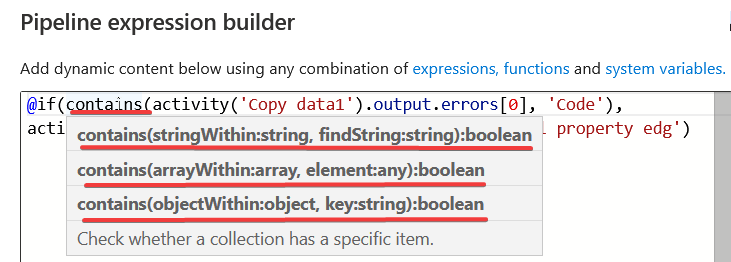
In case you’re curious about how the function Contains works, you can check out the Microsoft’s documentation about it or you can do a quicker check in the AZ Data Factory’s, pipeline expression builder; just place your cursor over the name of the function and you will see a quick reference of it:
3.2 Use the optional accessor “?”:
In the error message we saw at the beginning of the article, I was trying to read the property durationInQueue.
Error: The expression ‘activity(‘Activity_Z_Name’).output.durationInQueue.integrationRuntimeQueue’ cannot be evaluated because property ‘durationInQueue’ doesn’t exist.
The fix to this by using the optional accessor “?” is really easy. You just have to place it right after the name of the nullable property.

This will let AZ Data Factory know that the property might or might not be available to be accessed.
4. Final comments
This is it my people! If you have implemented a different solution, please let me know about it in the comments.
Hope you have enjoyed the reading and learned a lot! 😉


Leave a comment